First use
This guide introduces the primary Z3r0 modules and walks through initial resource configuration and an authorized CTF project workflow.
System overview
Access the configured listening address and port to enter the landing page:
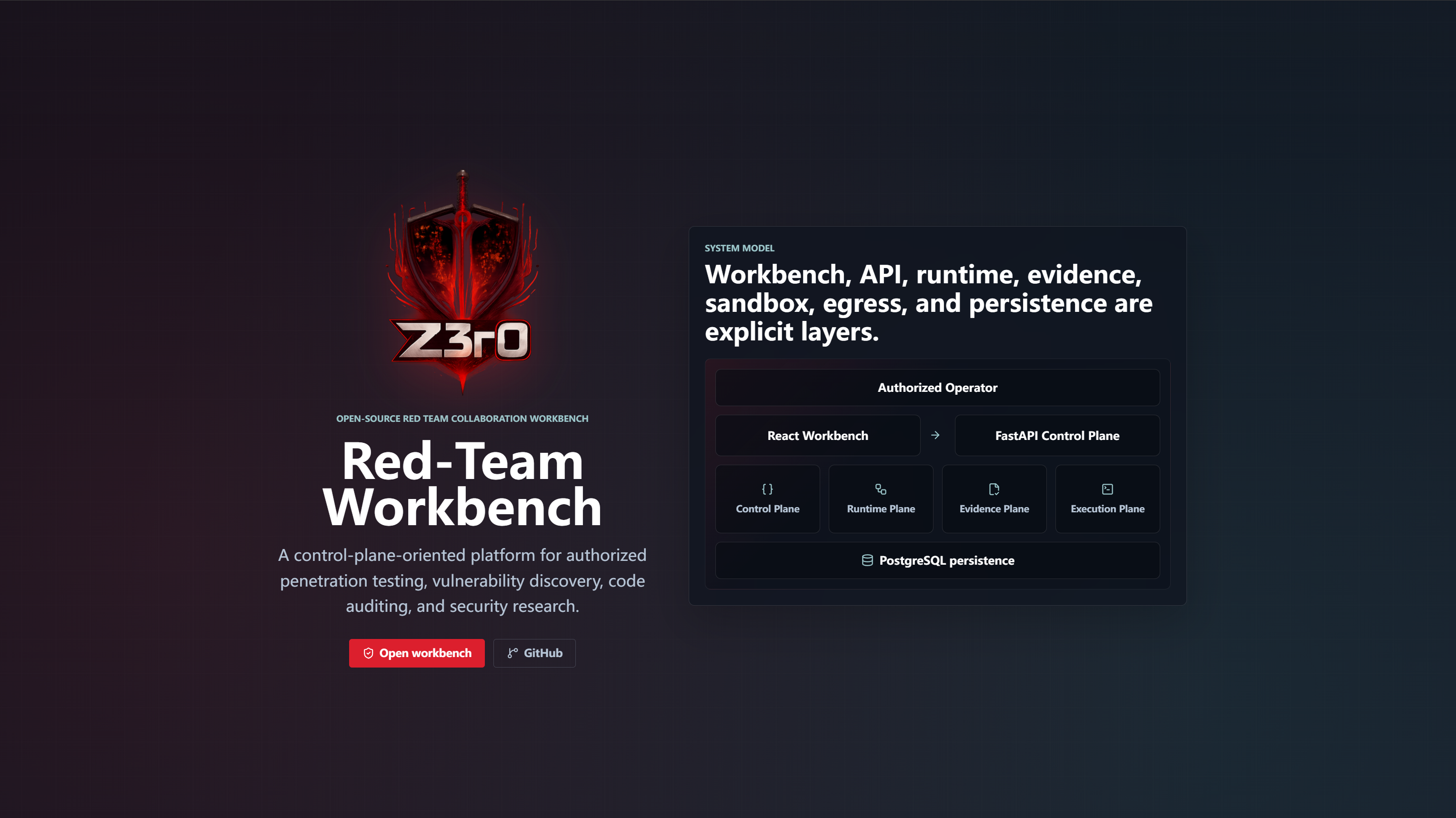
Click Open workbench to open the login page:
Enter the configured administrator account and password. After successful authentication, the management console is displayed.
The system contains the following core modules:
- Playground: Provides session-based interaction and collaboration with the agent team.
- Work projects: Manages authorized scope, graph-targeted workflow, evidence, findings, attack paths, decisions, and sessions.
- Knowledge: Manages document ingestion, vector inspection, semantic retrieval, and knowledge graph exploration.
- Host management: Manages host nodes and orchestrates the runtime environment for sandbox containers.
- Egress proxies: Manages unified network egress through HTTP, HTTPS, and SOCKS5 proxies.
- Sandbox images: Manages customized sandbox images, including the default image with sandbox-local skills and preloaded security tooling.
- Sandbox containers: Orchestrates runnable sandbox containers with command execution, files, noVNC/browser review, and egress configuration.
- System users: Manages system users, roles, and related identity information.
- System config: Manages agent runtime, agent models, and independent LightRAG embedding and extraction configuration.
Start working
The following sections configure execution resources, create a project, and run an authorized CTF workflow from a clean system state.
Manage knowledge documents
Knowledge turns assessment playbooks, research notes, reports, and other reference material into a searchable knowledge collection. Upload one or more Markdown or PDF documents, then follow their processing status while the collection is parsed and indexed.
The documents view presents each source, its processing state, content summary, extracted text, and parsing details. The vectors view exposes the original text segments and source metadata used by retrieval. The knowledge graph view supports semantic search across entities and relationships, with related areas available for progressive exploration. Together, these views provide a traceable review path from source material to retrieval content and graph relationships.
After indexing, the managed document content, vectors, and graph relationships form the retained knowledge representation, so the uploaded source file does not need to remain available. Deleting a document removes its indexed text and graph contributions from the collection.
Building knowledge graphs with LightRAG Core provides matching original document chunks and graph context for task-oriented inputs. Retrieval follows the active request and conversation focus, allowing follow-up work to remain grounded in relevant source material as the task develops.
Connect a host
Z3r0 adds the local machine to host management during startup, so a remote host is optional. A dedicated remote host is recommended when workload isolation, privilege separation, independent capacity, or centralized operational management is required.
Follow the steps below to configure and connect a remote host.
1. Install Docker and configure the remote API with mutual TLS authentication
curl -fsSL https://get.docker.com | bash -s docker
wget https://raw.githubusercontent.com/yv1ing/Z3r0/refs/heads/main/sandbox/init_host.sh && chmod +x init_host.sh
Run bash ./init_host.sh, enter the host IP address, and wait for certificate generation and automatic configuration to complete. The Docker client certificates are written to the current directory:

On some distributions, you may need to manually edit the Docker service to avoid daemon configuration conflicts:
systemctl edit docker.serviceAdd the following content to the blank editor area:
[Service]
ExecStart=
ExecStart=/usr/bin/dockerd
Restart the Docker service:
systemctl restart docker2. Create a host record and fill in the connection information
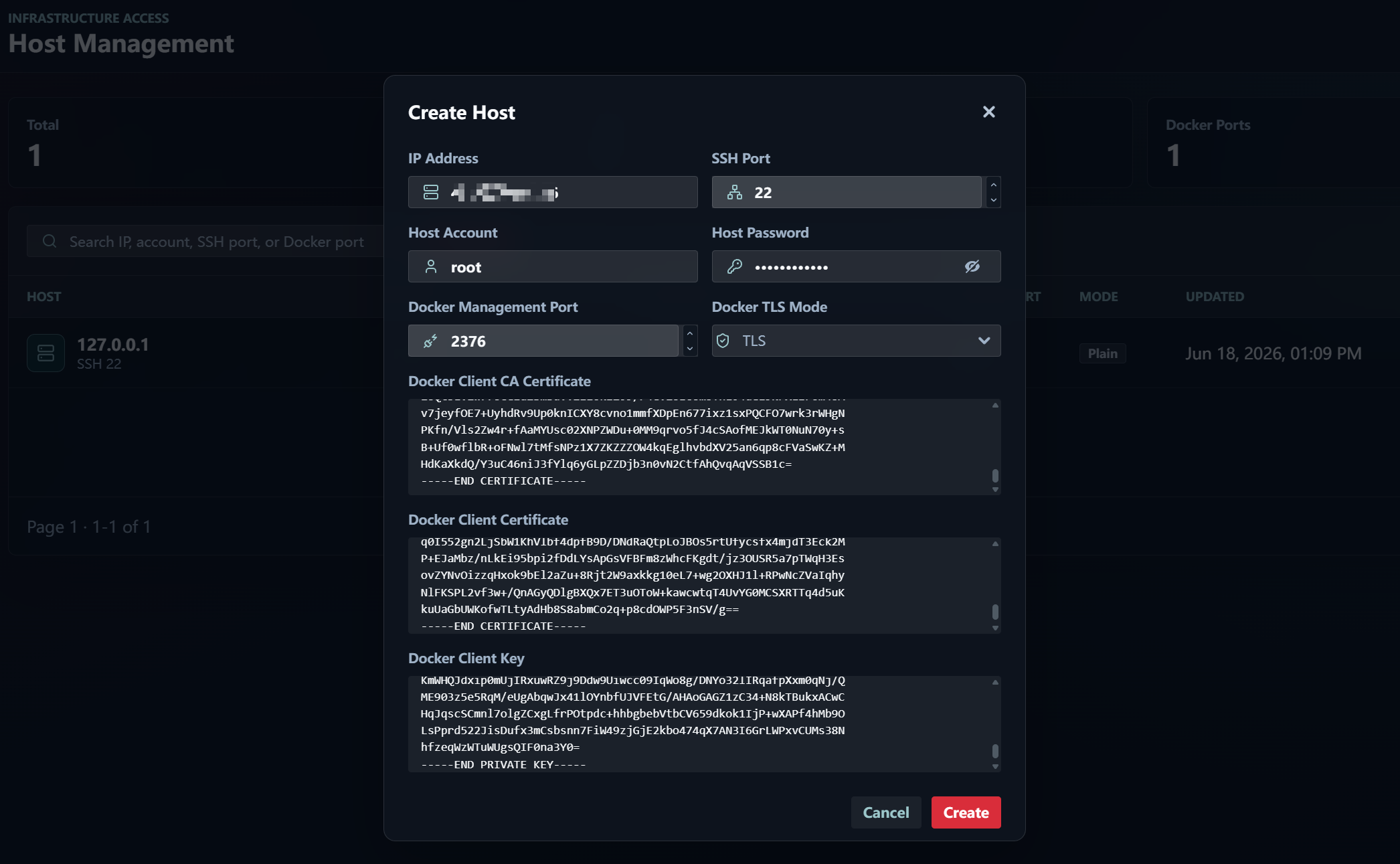
In the Host management module, click Create host to open the edit form. Fill in the remote host IP address, port, account, password, and Docker certificate information, then save the record.
Use mutual TLS whenever Docker remote API traffic leaves the local host. Plain mode should be limited to explicitly trusted, isolated networks with independent access controls.
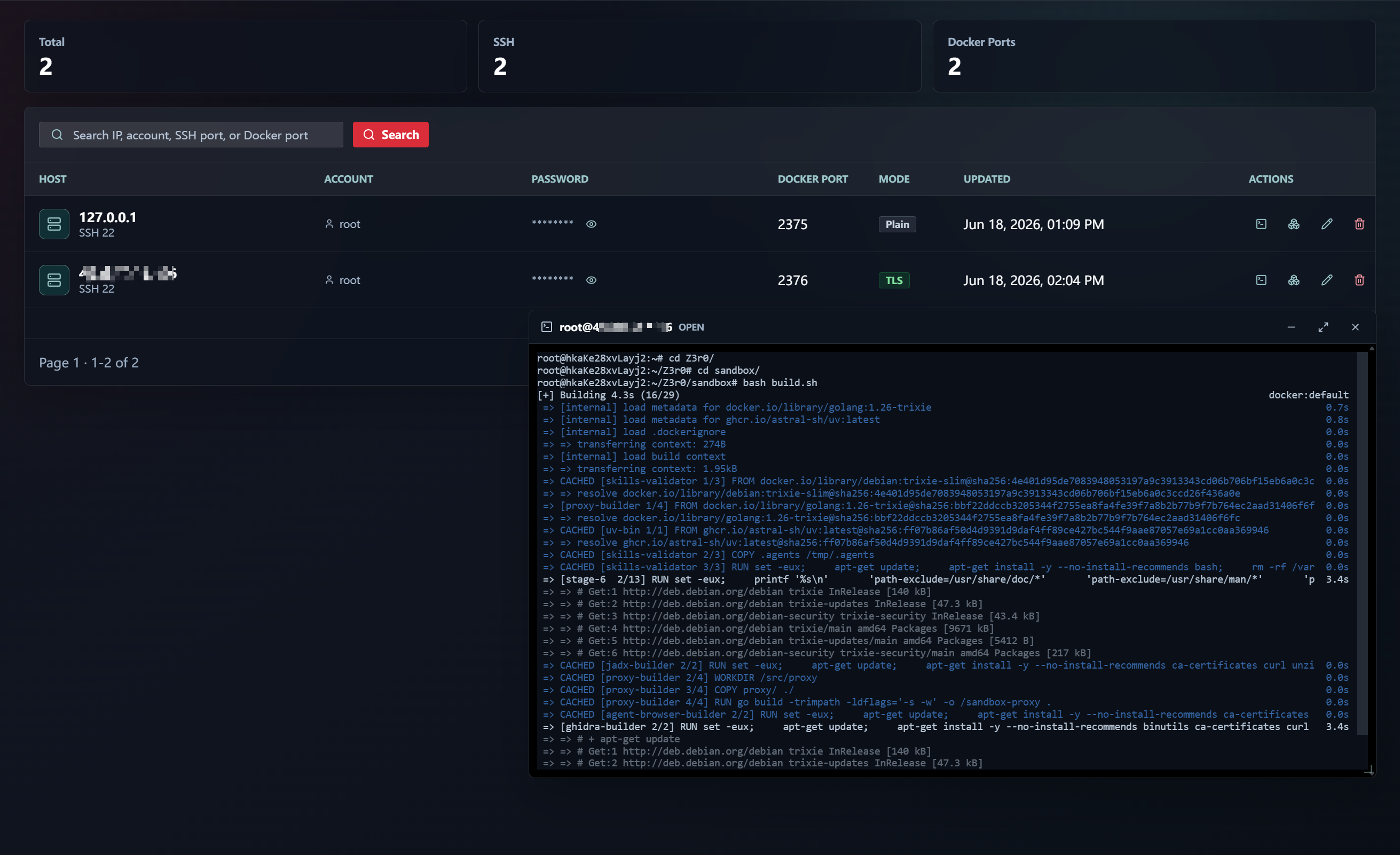
3. Connect to the host and build the sandbox image
Z3r0 provides a web terminal that can connect directly to the remote host over SSH. Follow the instructions in Quick start to build the sandbox image.
Create an image
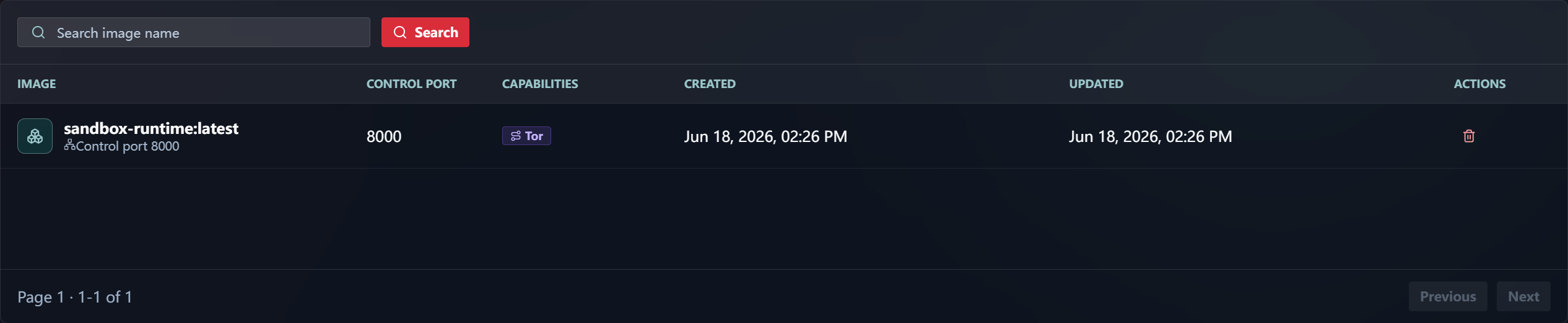
In the Sandbox images module, create an image record. The image name must match the name of the image that was actually built:
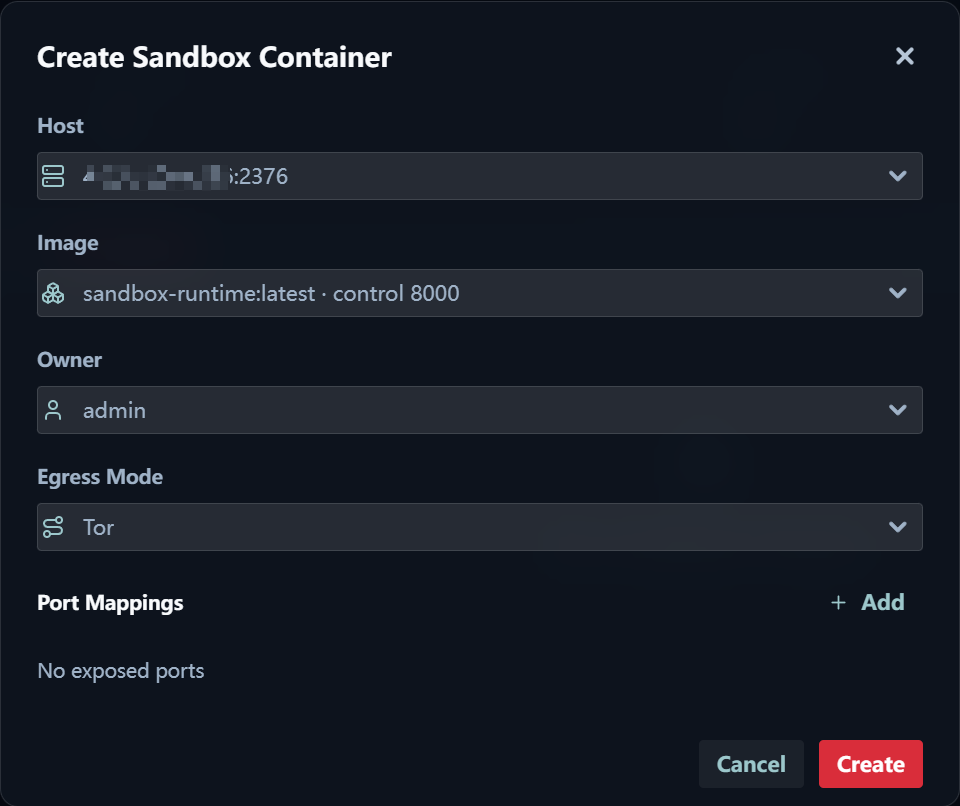
Create a container
In the Sandbox containers module, create a container and select the corresponding remote host and sandbox image. During container creation, you can specify the container egress mode. Z3r0 supports direct connection, HTTP, HTTPS, SOCKS5, and Tor. HTTP, HTTPS, and SOCKS5 require proxy entries to be configured in advance in the Egress proxies module.
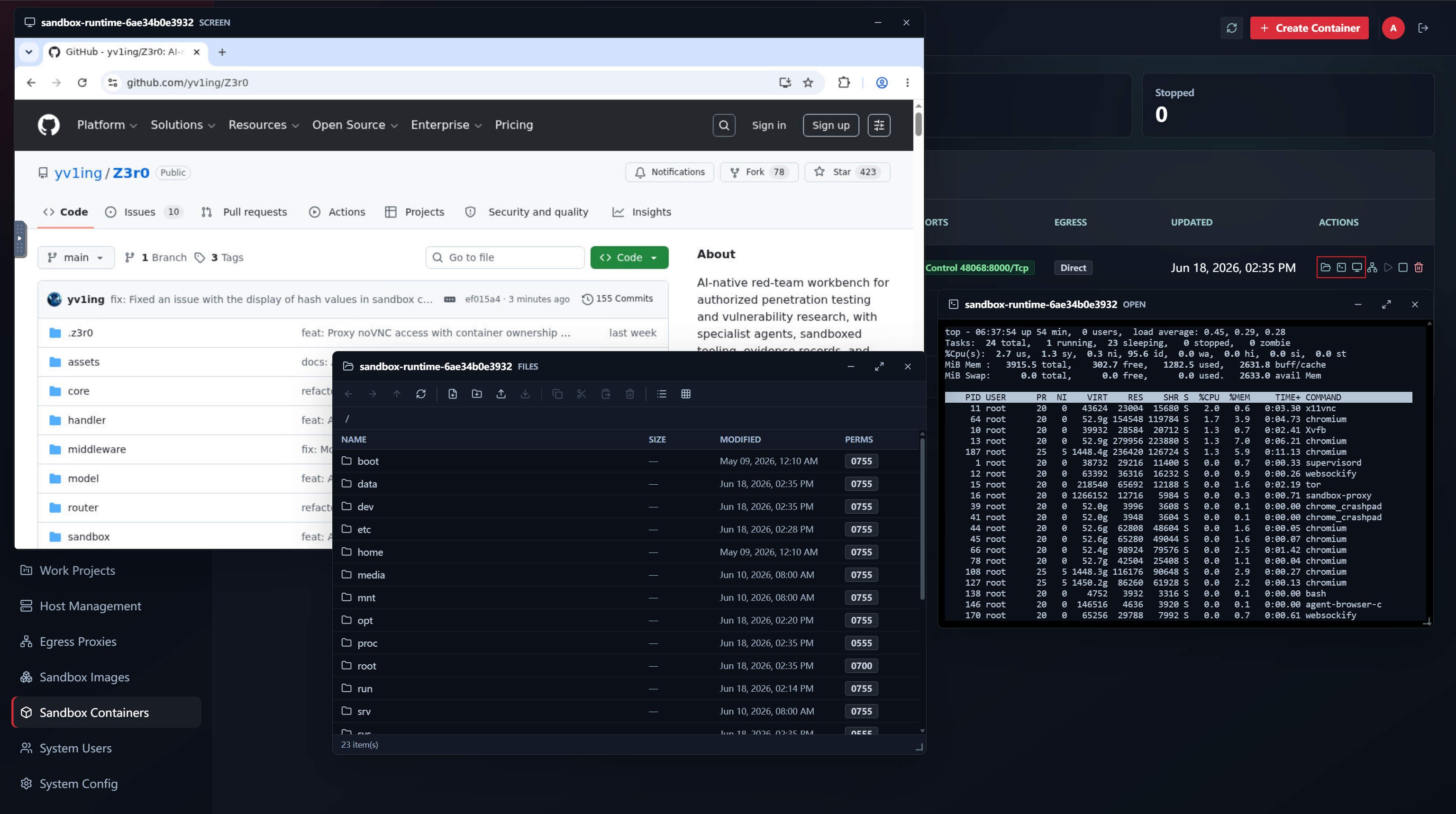
Test the container
After the sandbox container is created, use the action buttons on the right side of the list item to operate it. Start the container, then access the sandbox through the web terminal, file manager, and noVNC display.
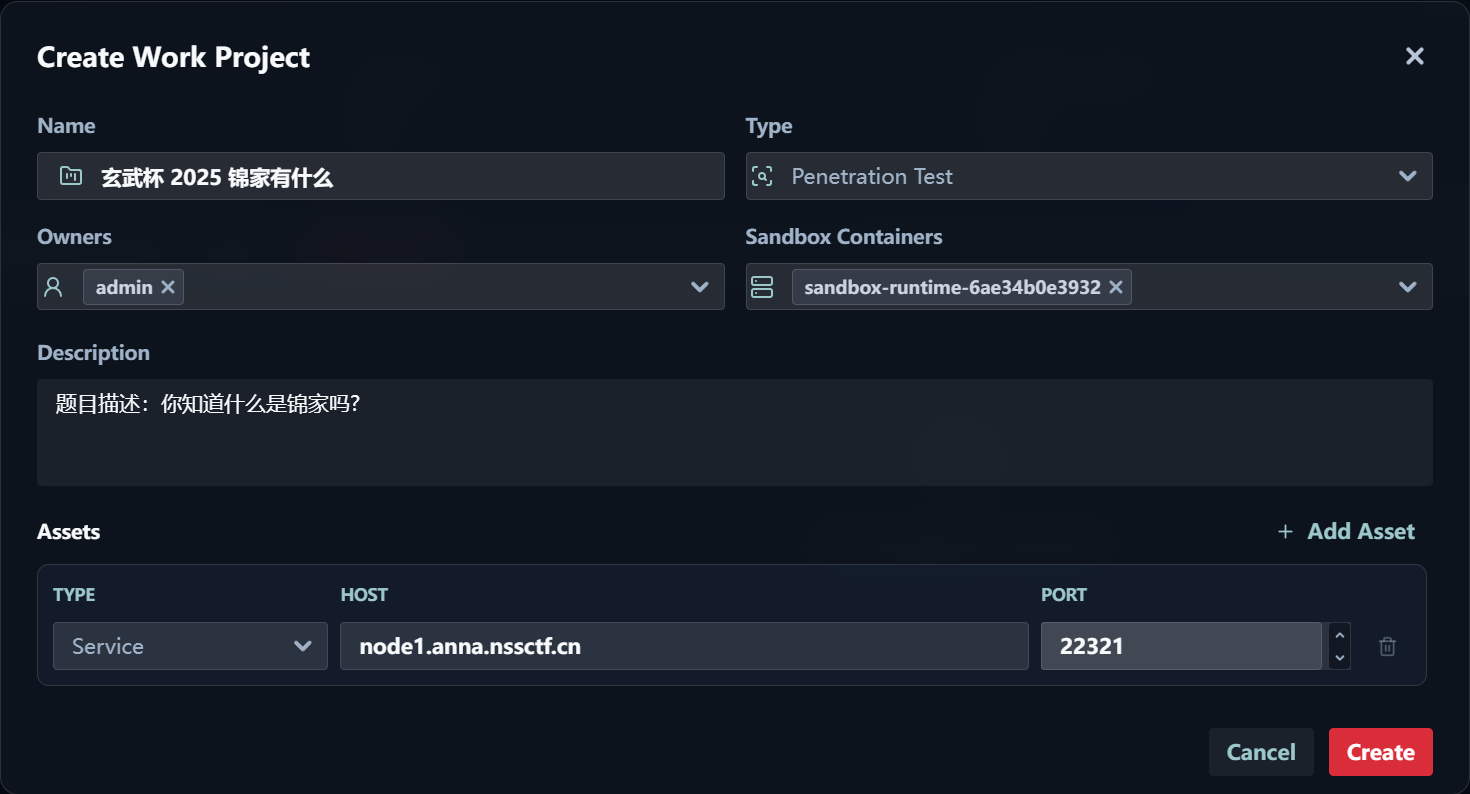
Create a project
Using an authorized CTF challenge as the target, create a project in Work projects. Fill in the project name, type, description, owners, and sandbox binding. Declare each known scope asset with a kind, canonical locator, name, and criticality. Declared assets are immediately in_scope; assets discovered later remain contextual until the lead agent confirms scope.
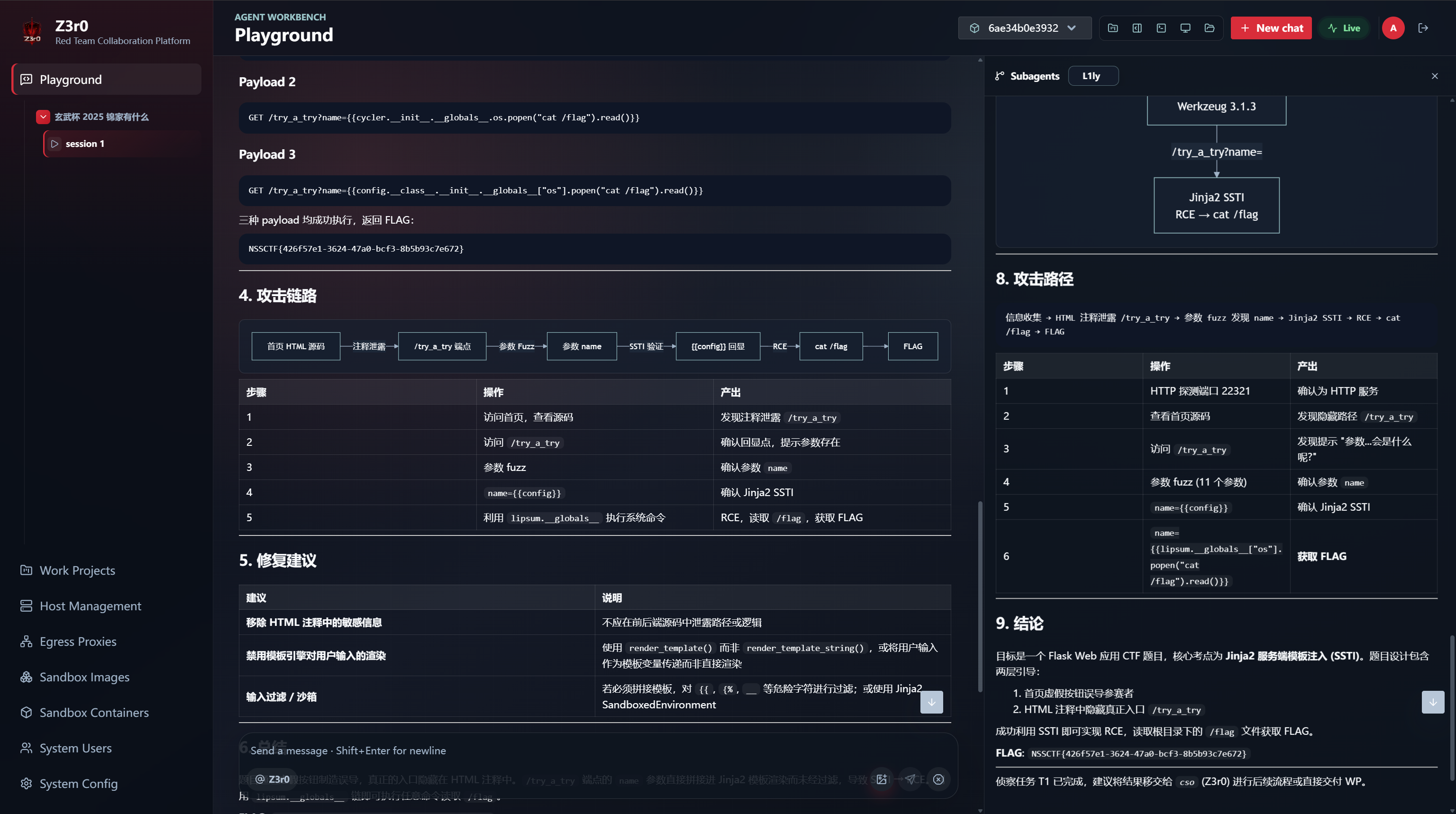
Execute the workflow
After the work project is created, it appears in Playground. Open it, create a session, and assign the authorized objective to the agent team. The lead agent reads the scope and graph, prepares work items with target assets and completion criteria, then coordinates the appropriate specialist for each assignment.
During execution, open the project workspace to review the eight operational views:
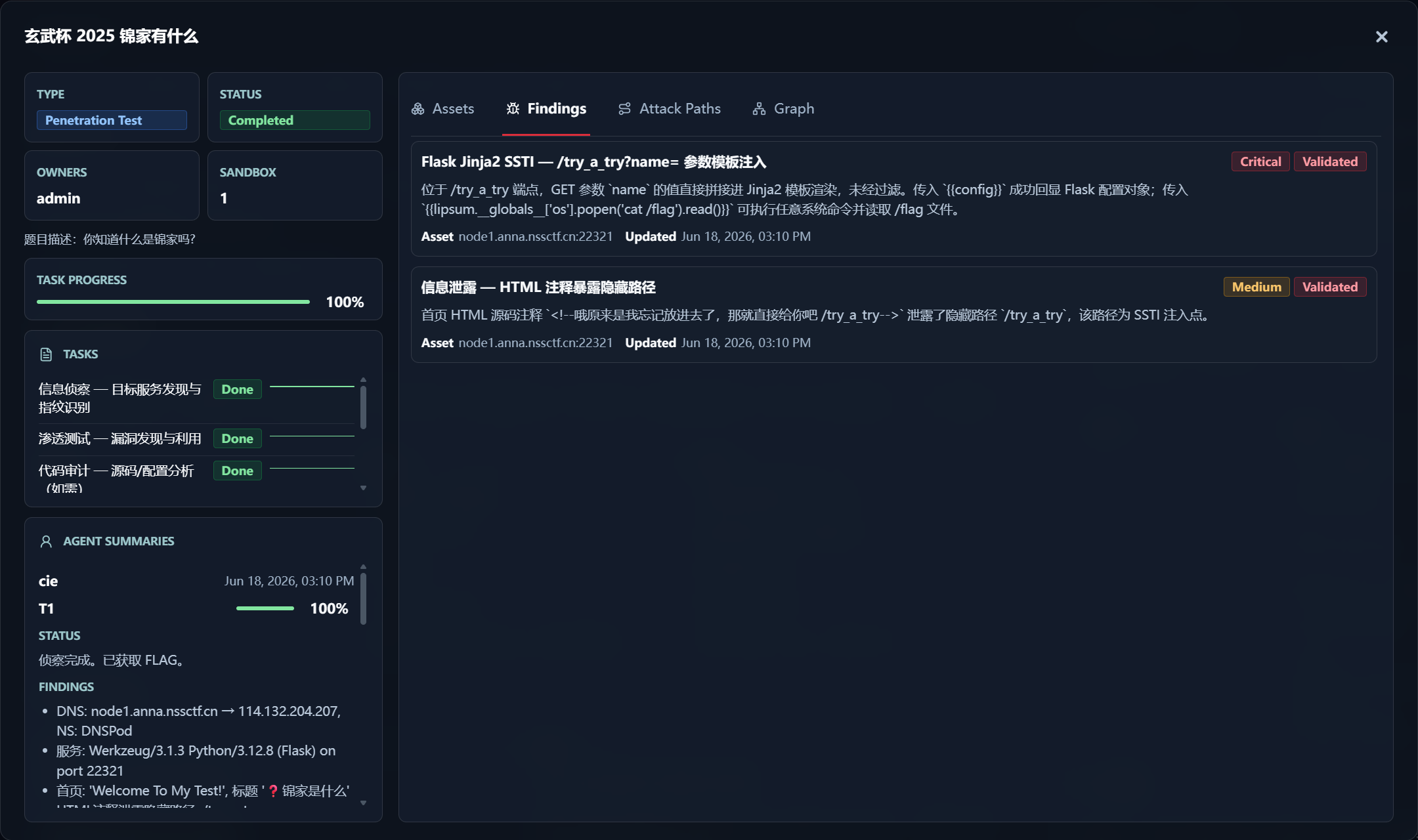
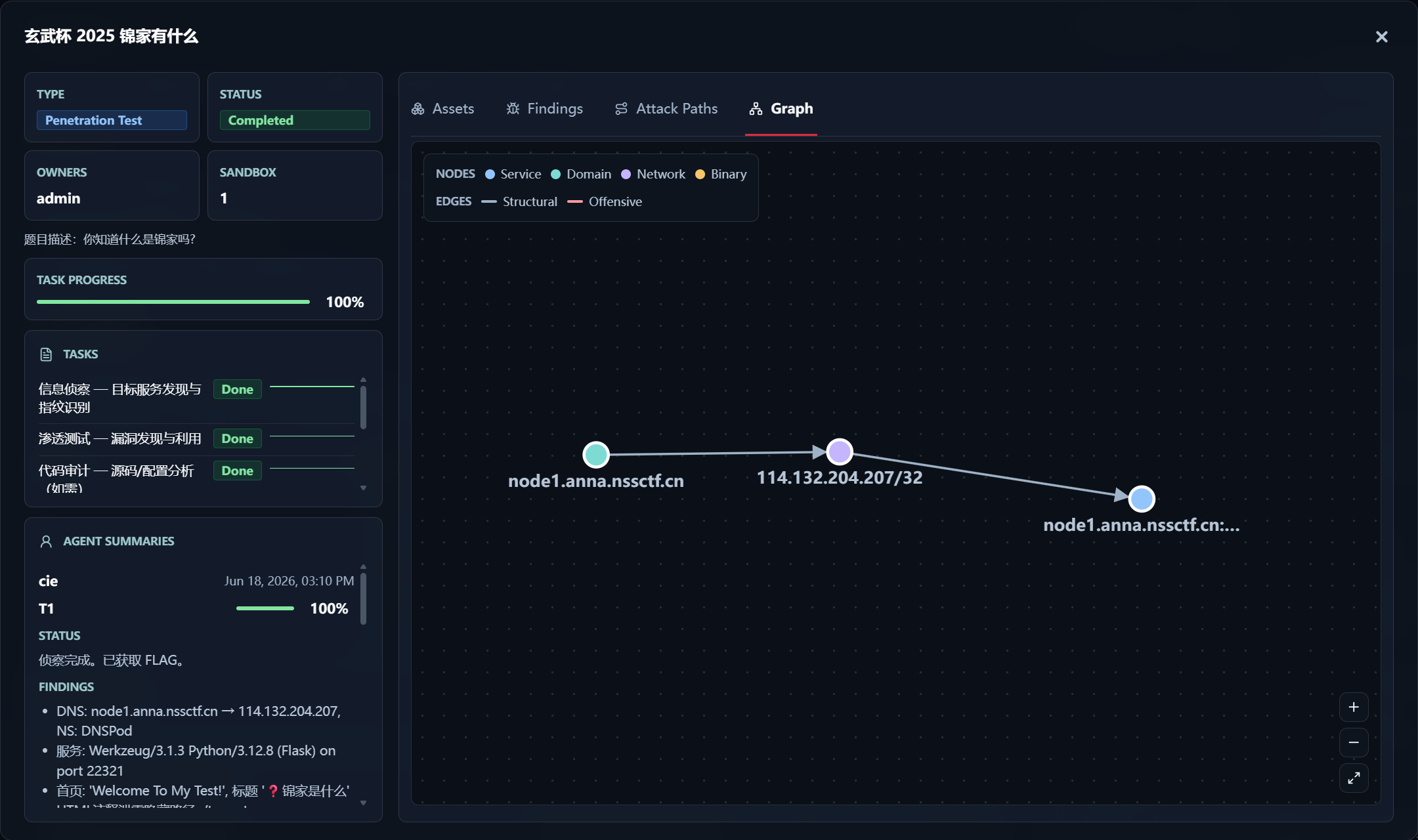
Overviewsummarizes scope coverage, current assignments, findings, paths, evidence, and active agents.Workflowconnects each assignment to assets, test surfaces, dependencies, coverage conclusions, work item-attributed evidence, decisions, and subordinate runs; status and assignee filters support focused review.Graphpresents environment structure, connectivity, dependencies, identity, trust, data flow, and provenance without mixing in offensive actions.Assetsdistinguishes declared scope, discovered context, out-of-scope entities, criticality, and stable locators.Findingspresents validation, severity, impact, remediation, disposition, CWE/CVSS, affected assets, and supporting evidence.Attack pathsreconstructs continuous offensive steps with blockers, evidence, and optional ATT&CK mappings.Evidencepreserves work item-attributed immutable observations with source references, integrity hashes, supersession, and lifecycle state.Activityrecords business-significant state and plan changes, decisions, blockers, handoffs, and results.
Each specialist receives the assignment, target coverage, supporting evidence, surrounding graph, and relevant retest opportunities needed for the current task. Evidence remains attributed to the work item as relationships, findings, and path steps are validated. Once every target has a conclusion and the result is ready, the lead agent can accept the work or return specific target surfaces for further analysis. Useful negative results remain available as evidence and can close a test surface without inventing a vulnerability. New credentials, trust relationships, routes, versions, code paths, and keys bring related follow-up and retest work into view.